How a Malaysian Seller Lost RM15,000/Month in Marketplace Fees: Build Your Own FPX Store & Keep 98% Profit
Gross sales touched RM84,250, but platform tolls ate RM15,130 (~18%) and masked customer phone numbers. Here is the visual breakdown, interactive savings calculator comparing Free vs RM50 subscription, and how to launch your own direct FPX store.

Escape 18% Marketplace Fees: Setup Your Sovereign FPX Storefront & Claim Your Custom Domain
"We Hit RM84,250 in Sales — Then 18% Evaporated Before Reaching the Bank."
The Celebration
August 31st: Akmal's Shah Alam modest fashion label hit a record RM84,250 GMV. He treated his entire warehouse crew to a steamboat dinner, convinced his business was flourishing.
The Payout Shock
When platform settlements arrived, only RM69,120 landed in his bank. Over RM15,130 (17.95%) had been quietly skimmed by commission tiers, marketing programs, and SST.
The Masked Trap
A random bot algorithm then suspended his shop for 14 days, freezing RM32,000. When he tried contacting 800 repeat buyers, every phone number was masked (012-***4567). He owned zero customer data.
Akmal learned the hardest lesson in modern e-commerce: Building exclusively on rented marketplace land means you own nothing. You don't own your traffic, you don't own your customer contact list, and your profit margins are permanently exposed to unilateral fee increases.
Claim your sovereign brand URL (e.g., yourbrand.livestore.my) or map your own custom domain (.com / .my). Zero distracting competitor banner ads placed under your listings.
Upload your custom brand logo, announcement bars, favicon, and brand color palette. Deliver a premium, fast mobile checkout that builds long-term customer affinity. For the full walkthrough, see how to make your online store look premium with 3 built-in themes, two-tier vouchers and Meta/TikTok pixel setup.
Fortified admin authentication, encrypted password hashing, and single-click remote session revocation keep your business protected from unauthorized intrusions.
Every customer name, unmasked Malaysian WhatsApp mobile number (012-3456789), and delivery address is 100% yours forever.
Where Did Akmal's RM15,130 Disappear To? (The Marketplace Toll Reality)
| Fee Component | Rate | Deduction on RM84,250 |
|---|---|---|
| Commission Fee (Tier Category) | 9.0% | -RM7,582.50 |
| Service Fee (Free Shipping / Coin Program) | 4.0% | -RM3,370.00 |
| Payment Processing (FPX / Cards) | 2.16% | -RM1,819.80 |
| 8% SST on Platform Service Charges | 8.0% | -RM1,021.78 |
| Return Adjustments & Campaign Levies | Variable | -RM1,335.92 |
| Total Marketplace Toll | ~17.95% | -RM15,130.00 |
-
✕ Customer phone numbers masked (
012-***4567) - ✕ Competing ads directly under your product listings
- ✕ Payout freezes with zero human account support
 Direct LiveStore Storefront
- ✓ Free Plan: RM0/mo + RM2 per purchase + FPX (First 10 purchases waived!)
- ✓ RM50 Sub: RM0 per purchase (waived) + FPX
- ✓ 100% full WhatsApp customer database ownership
Calculate Your Exact LiveStore Savings vs Platform Tolls
Toggle between our Free Starter Plan (RM2/order + FPX) and Pro Subscription (RM50/mo flat + FPX) to see how much net cash stays in your bank account every month.
Automated Email & Receipts: Tax-Ready SSM Invoices & Eliminating Fake WhatsApp Slips
Never eyeball fabricated bank transfer slips again. LiveStore automates real-time merchant notifications, delivers branded thank-you emails with live tracking numbers to buyers, and compiles professional, tax-ready PDF invoices.
Real-Time Seller Alerts
Instant notification pings trigger the moment a customer completes checkout. Pack orders promptly without refreshing messy admin dashboards.
Buyer Thank-You Emails
Automated post-purchase confirmations include order itemization, live courier tracking links, and 1-tap WhatsApp customer service buttons.
Branded PDF Receipts
Customize receipt header colors, brand logo, SSM enterprise registration number, and custom return warranty policy notes in the footer.
Customizing Tax-Ready PDF Receipts & Buyer Invoices
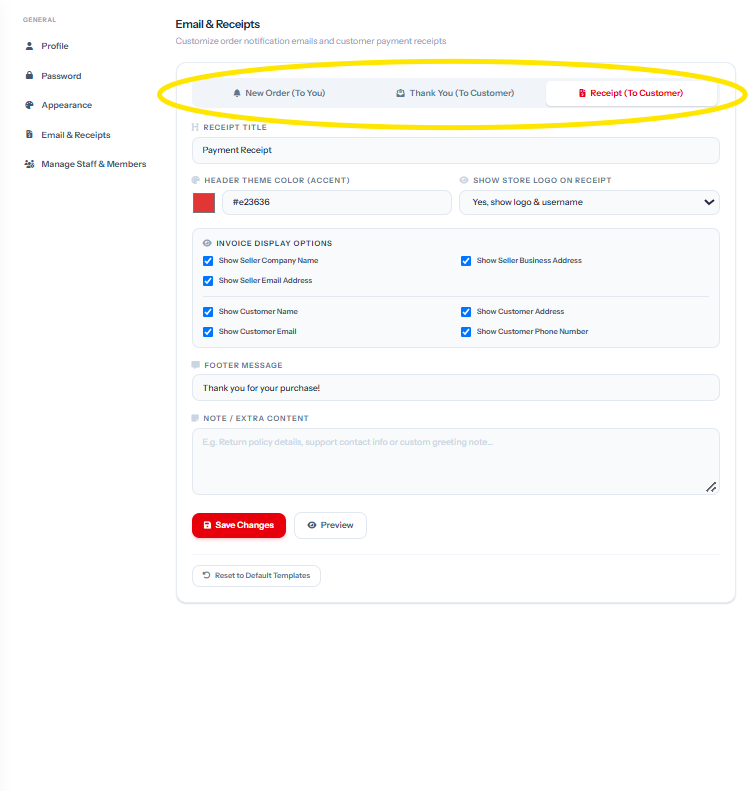
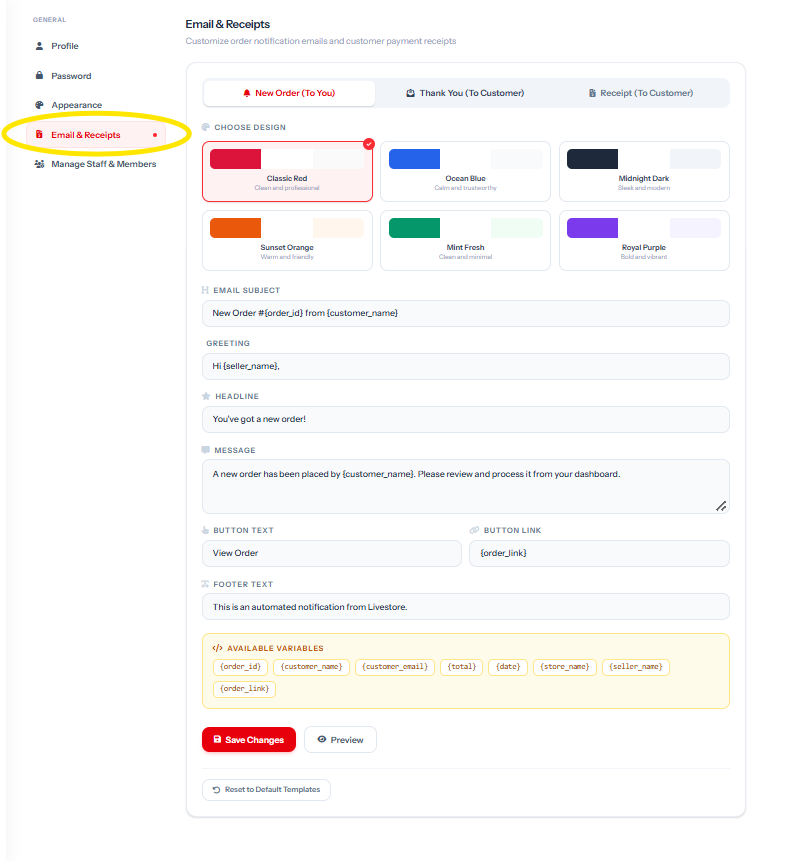
#e23636), toggle store logo and company address, add your SSM registration number, and specify return/warranty policies in the footer notes.
Email Notification Studio: Pick from ready-made presets (Classic Red, Ocean Blue, Midnight Dark) and dynamic variables like {order_id}, {customer_name}, and {order_link}.
Eliminating the WhatsApp Screenshot Payment Scam
Social commerce merchants lose thousands each year to fake Photoshop payment slips sent over WhatsApp. LiveStore's automated payment verification generates an official tamper-proof PDF invoice tied to confirmed gateway transaction IDs, guaranteeing payment has entered your bank before orders reach your packing team.
Connected Commerce Hub: ToyyibPay vs Billplz Gateways, Shopee Catalog Sync, Free Gemini AI & MyParcel Asia
LiveStore connects your business directly to Malaysia's premier payment providers, automated courier booking networks, marketplace catalog synchronizers, and generative AI engines without fragile third-party plugins.
Connect Your Entire E-Commerce Stack in 1-Click
Activate native integrations directly from your seller dashboard. No fragile third-party webhooks or costly developer setups required.
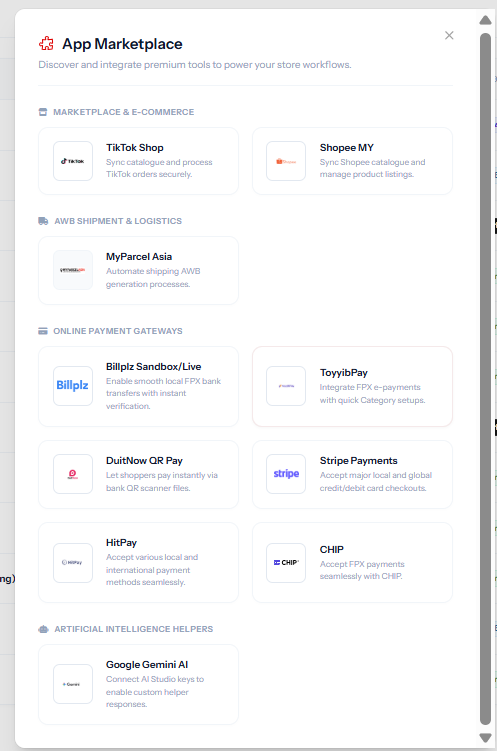
 ToyyibPay FPX
 Billplz FPX
 Chip Gateway
 HitPay Malaysia
 Stripe Cards
 DuitNow QR
 Google Gemini
 MyParcel Asia
Vertical 1: Direct Payment Gateways & Directory
Connect licensed Malaysian payment gateways so customer checkouts settle directly into your bank account. Here is the verified comparison of supported methods, transaction rates, and settlement windows:
| Gateway | Payment Methods | Transaction Fee | Payout Schedule | SSM Required? | Best Suited For |
|---|---|---|---|---|---|
|
ToyyibPay
|
FPX Online Banking (20+ Banks) | RM1.00 flat /order | T+1 / T+2 Business Days | No (IC OK) | Solo sellers & side-hustles |
|
Billplz
|
FPX Direct, Credit Cards, e-Wallets | RM1.00 - RM1.50 (or RM0.50) | Next Business Day (Auto) | Yes (SSM) | Registered SMEs & high-volume FPX |
|
CHIP
|
FPX, Visa/Mastercard, DuitNow QR | FPX: RM1.00 | Cards: ~2.0% | T+1 Business Day | Yes (SSM) | Modern D2C brands wanting sleek UI |
|
HitPay
|
FPX, DuitNow QR, Cards, GrabPay, ShopeePay | FPX: ~1% (RM1.20) | Cards: 2.9% | T+2 Business Days | Yes (SSM / IC) | Omnichannel sellers needing all methods |
|
Stripe
|
Credit/Debit Cards, Apple Pay, Google Pay, FPX | Cards: 3.0% + RM1 | FPX: RM1.00 | Rolling 5–7 Days (to 3 Days) | Yes (SSM / Co.) | International buyers & card checkouts |
|
DuitNow QR (Manual)
|
Manual QR scan & payment receipt upload | RM0.00 (0% Free) | Instant Direct to Bank | Not Required | Zero-fee direct bank transfers & WhatsApp shoppers |
ToyyibPay
Malaysian FPX Specialist
Billplz
Enterprise FPX & Direct Billing
CHIP
Modern Checkout & FPX Engine
HitPay Malaysia
All-in-One Multi-Payment Gateway
Stripe Malaysia
Global Payment Infrastructure
DuitNow QR Pay
Built-in LiveStore Direct TransferThe LiveStore Multi-Gateway Advantage
Why limit your buyers to only one channel? On LiveStore, you can activate multiple payment gateways concurrently. Pair ToyyibPay or Billplz for low-fee RM1 FPX banking, enable Stripe for international card checkouts, and offer DuitNow QR Pay for zero-fee bank transfers. Your store automatically displays all active channels to buyers!
Vertical 2: 1-Click Marketplace Catalog Sync (Shopee & TikTok)
Never waste hours manually copy-pasting product images, SKUs, and variation prices. Connect your existing marketplace seller accounts to import your complete catalog into LiveStore in minutes:

Shopee MY Partner Authorization
1-Click Catalog & Order Inventory Sync
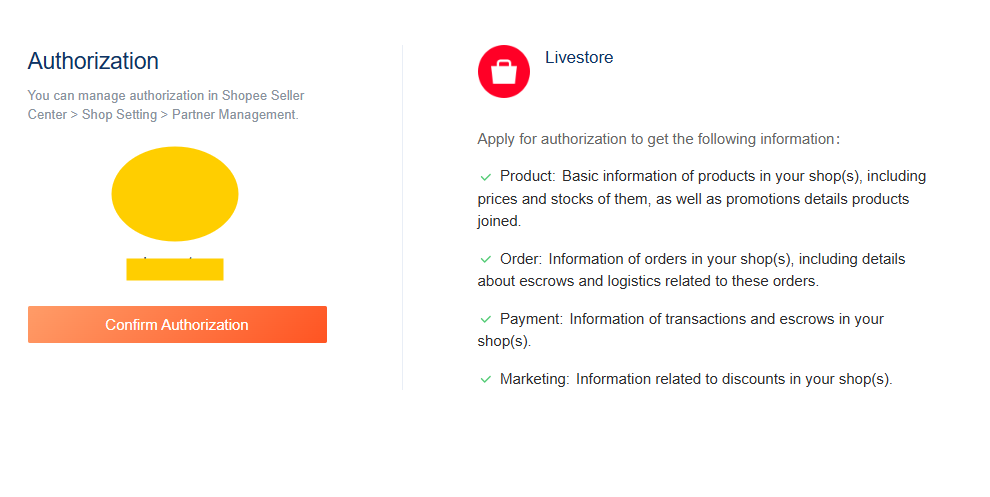
Pull your full Shopee product listing, sizes, color variations, and high-resolution galleries directly into your LiveStore inventory. Authorize access to Product, Order, Payment, and Marketing details via the official Shopee Open Platform.

TikTok Shop Partner Authorization
Real-Time LiveStream Stock Alignment
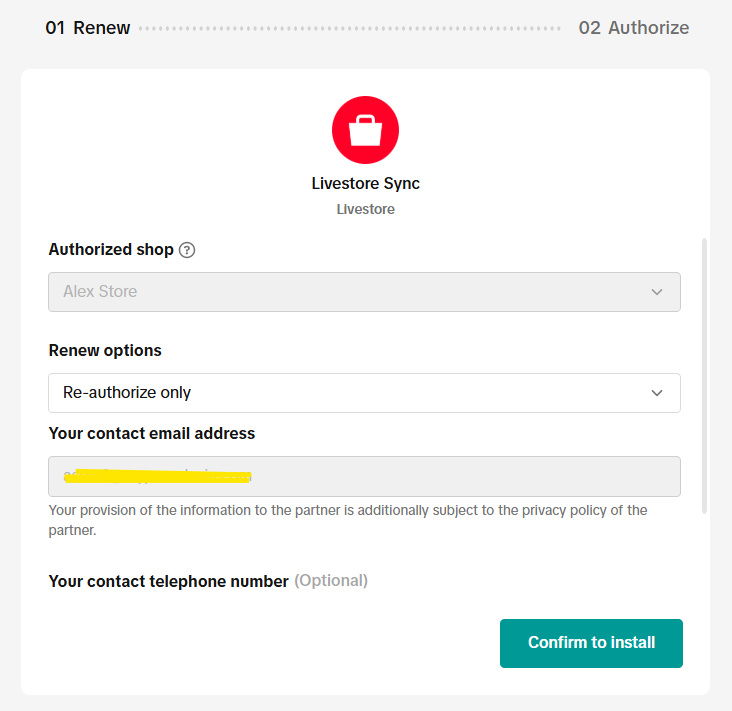
Synchronize real-time stock levels with your TikTok Shop. Convert video live-stream watchers into permanent direct D2C buyers without overselling inventory. Select your authorized shop and click Confirm to install.
Important: Seller Account Login Authorization Required
To complete the integration, you will be redirected to the official Shopee or TikTok Shop Open Platform gateway. You must log in using your active marketplace seller account credentials and click Confirm Authorization (Shopee) or Confirm to install (TikTok Shop). LiveStore connects securely through verified partner APIs without ever seeing or storing your master passwords.
Vertical 3: Google Gemini AI Product Copywriting Engine
Generative AI for Malaysian CommerceAccelerate your product uploads with LiveStore's integrated Google Gemini artificial intelligence engine. Craft high-converting sales copy tailored for Malaysian buyers without hiring expensive copywriters:
Generate keyword-optimized product headlines and structured meta tags that help your items rank on the first page of Google search results naturally.
Produce persuasive, culturally resonant product descriptions in both Bahasa Melayu and English with one click, highlighting key selling points and sizing specs.
100% Free API Key — Zero Upfront Cost, Free For All Sellers
Unlike paid AI tools that charge steep monthly subscriptions, Google provides a generous Free Tier API Key to anyone with a Google account — completely free of charge with no credit card required.
- Visit the official portal at Google AI Studio (aistudio.google.com/app/apikey) and sign in with any standard Google/Gmail account.
- Click the blue "Create API key" button to generate your unique secret key instantly.
- Copy and paste your key into LiveStore under Integrations → Google Gemini AI. That's it — enjoy unlimited AI copywriting for your store at RM0 cost!
Vertical 4: MyParcel Asia Automated Fulfillment & Thermal AWBs
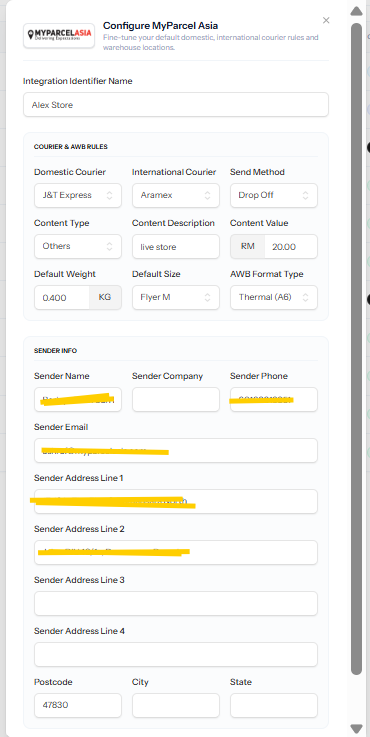
LiveStore connects natively to MyParcel Asia, giving you direct access to Malaysia's premier courier infrastructure at volume corporate shipping discounts. Fine-tune your courier rules, sender warehouse location, and automated dispatch workflows in one modal:
Assign default domestic couriers (e.g. J&T Express) and international couriers (e.g. Aramex), with seamless toggle between Drop Off and Doorstep Pick Up without queuing at post offices.
Pre-configure standard package sizing (Flyer M, default weight 0.400 KG) and choose Thermal (A6) format for instant 1-click airway bill sticker generation directly from your thermal printer.
Save your warehouse sender name, phone number, and postal code. Every incoming customer order automatically generates a courier-compliant consignment note ready for immediate dispatch.
LiveStore Pricing Plans & Testing Modes: Free Account vs RM50/Mo & Sandbox Environment
Choose the exact billing tier that matches your monthly order velocity, and test your entire checkout and fulfillment pipeline safely before processing real customer transactions.
Choose Your Preferred Package
Scale your enterprise storefront with high-end premium features
Free
- Product Lists 30
- Order Forms 10
- FPX
- Bank Transfer
- DuitNow QR
- LiveStore Fee RM2.00

Lite
- Product Lists 15
- Order Forms 3
- FPX
- Bank Transfer
- DuitNow QR
Pro
- Product Lists 250
- Order Forms 50
- FPX
- Bank Transfer
- DuitNow QR
Max
- Product Lists 5000
- Order Forms 500
- FPX
- Bank Transfer
- DuitNow QR
Safe Payment Gateway Modes: Sandbox Testing vs Production Live
LiveStore protects merchants from embarrassing checkout bugs with our built-in environment switcher:
Input your payment gateway sandbox test API keys to simulate test orders, verify invoice PDF formatting, test customer webhook notifications, and inspect automated courier bookings without moving actual money.
Toggle into Live Production mode by pasting your verified Secret Keys. Real customer payments are captured via FPX or cards and settle automatically into your bank account on scheduled cycles.
Upgrade anytime to the RM50/month Pro plan with flexible 3-month, 6-month, or 12-month billing periods and clear auto-renewal controls. If you ever pause your subscription, your store gracefully defaults to the Free Starter account without deleting any product data.
Role-Based Staff Access: Warehouse Packing Delegation Without Exposing Financial Reports, Bank Accounts or Phone Numbers
Scale your operations smoothly as your order volume surges. Invite team members to pack parcels and manage inventory while strictly walling off confidential financial reports and payment configurations.
How to Invite & Onboard Fulfillment Staff in 30 Seconds
Delegate packing and delivery duties to your team while keeping revenue figures and gateway credentials confidential.
Go to Settings • Click + Add Staff
Open Manage Staff & Members from the left sidebar.
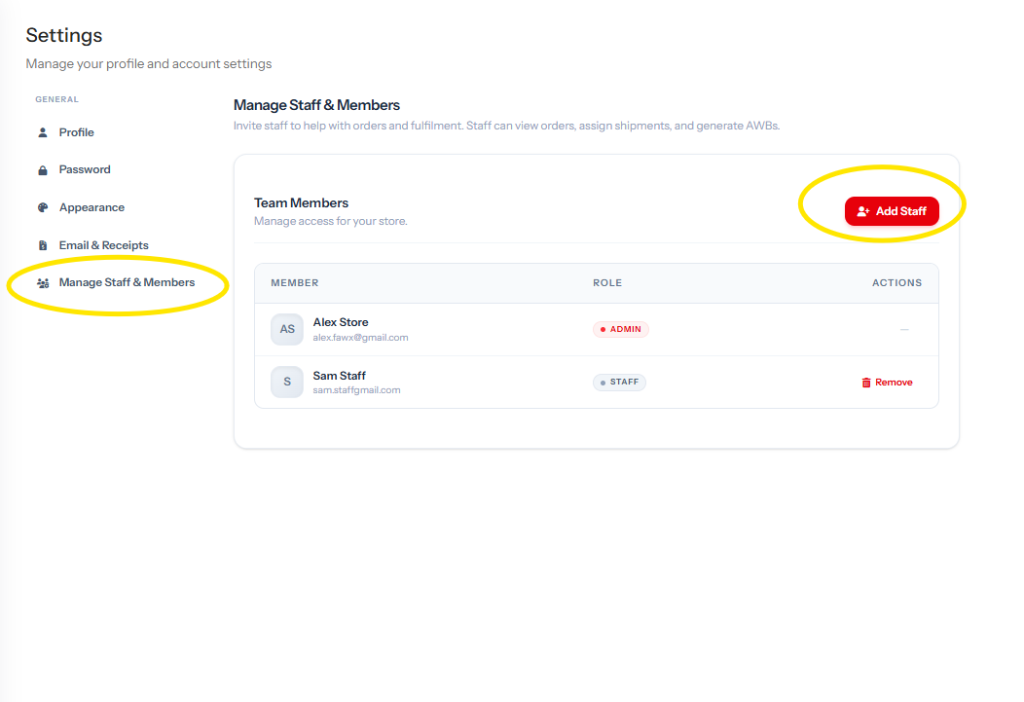
In your merchant settings, select Manage Staff & Members. You'll see your existing team list with their roles and the red + Add Staff button.
Enter Details • Click + Save Staff
Fill in name, email, and temporary password.
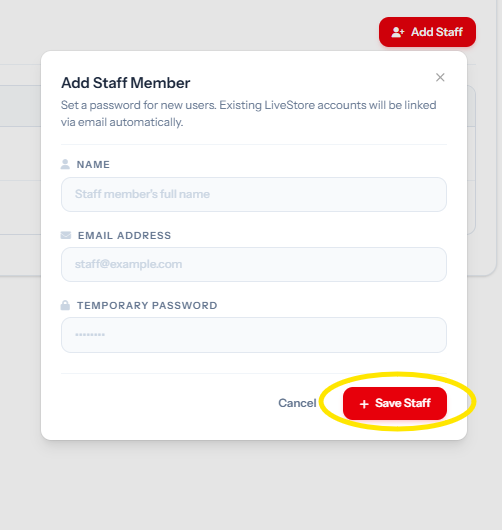
Fill in the staff member's name and work email. Set an initial temporary password, then click the red + Save Staff button to grant access.
Instant Automated Credential Email
Once saved, LiveStore automatically dispatches an onboarding email to the staff member's inbox with their login credentials and a direct link to sign in (livestore.my/login). They can log in immediately to view orders, prepare parcels, and print AWBs without seeing any confidential financials.
Store Owner & Administrators
- ✓ Full access to store GMV, revenue metrics, and profit margins
- ✓ Configure payment gateway API keys, secret keys, and webhook secrets
- ✓ Manage staff invitations, role assignments, and subscription billing
- ✓ Full authority to customize email and PDF receipt templates
Warehouse & Fulfillment Staff
- ✓ View active order queues, pick items, and verify order quantities
- ✓ Generate and print MyParcel Asia thermal airway bills (AWBs)
- ✕ Strictly blocked from viewing sales revenue or bank account credentials
- ✕ Blocked from exporting customer contact databases or changing store settings
Protecting Your Customer Database from Employee Data Theft
In conventional setups, rogue employees can download your customer phone numbers and sell them to competitors. LiveStore’s role-based access control restricts raw contact downloads exclusively to the Store Owner, ensuring your valuable repeat buyer database stays safe.
Fast 4-Step Launch Checklist: Start Your FPX Store in 10 Minutes & Claim 10 Free Purchases
Zero coding required. Follow this 10-minute roadmap to establish your sovereign brand storefront and begin retaining 98%–99% of your gross earnings today.
Register Free & Claim Your Store Handle
Sign up at livestore.my/register. Choose your custom store handle (e.g. yourbrand.livestore.my), upload your logo, and your storefront goes live instantly on the Free Starter plan. Onboarding Perk: Complete all steps in your dashboard setup guide to claim 10 purchases with waived LiveStore transaction fee!
Connect Payment Gateway (Test in Sandbox, Switch to Live)
Under Integrations → Payment Gateways, select ToyyibPay, Billplz, CHIP, HitPay, or Stripe. Paste your API keys, run a quick Sandbox test purchase, and flip the toggle to Live for direct bank settlement.
Import Catalog & Customize Automated Receipts
Sync your existing Shopee catalog or upload CSV items. Under Settings → Email & Receipts, upload your SSM business details and return warranty note to generate branded PDF invoices automatically.
Activate MyParcel Asia Logistics & Start Taking Orders
Connect your MyParcel Asia account to automate courier dispatch (Pos Laju, J&T, DHL, Ninja Van) and print bulk thermal AWBs. Share your store link on WhatsApp, Instagram, and TikTok to keep 98%+ profit!
Ready to Escape Marketplace Commission Fees?
Start Free (RM0/mo + RM2/purchase) or scale with our RM50/mo flat subscription. Connect your preferred Malaysian FPX gateway and launch today.
Common Questions from Malaysian Merchants
How does LiveStore pricing work between the Free Plan and RM50/month Subscription?
On the Free Account plan, there are zero monthly fees; LiveStore bills a flat RM2 per successful purchase plus standard FPX gateway fees (~RM1). Furthermore, newly registered sellers who complete all steps in the dashboard setup guide can claim their first 10 purchases 100% fee-waived (saving RM20). If you subscribe to the RM50/month Pro plan, the RM2 per-purchase fee is permanently waived, so you only pay your flat RM50 subscription plus gateway FPX. Once you process over 25 orders monthly, the RM50 subscription saves you substantial money.
Should I completely close my Shopee or TikTok Shop accounts?
No. Treat marketplaces as customer acquisition funnels for new buyers. Once a customer has bought from you, migrate them to your own LiveStore store for all repeat orders using flyer inserts or WhatsApp broadcasts so you never pay marketplace commissions twice on the same customer.
Which payment gateway should I choose: ToyyibPay, Billplz, CHIP, HitPay, or Stripe?
Choose ToyyibPay if you don't have an SSM company registration yet and want instant FPX online banking. Choose Billplz if you are an SSM business wanting the lowest flat FPX rate (RM1.00 - RM1.50) and automated daily payouts. Choose CHIP for a clean modern UI with both FPX and cards. Choose HitPay if you want e-Wallets (GrabPay, ShopeePay) alongside FPX and QR. Choose Stripe if you sell internationally or cater to buyers paying via credit cards and Apple Pay. You can even enable multiple gateways simultaneously!
Can my warehouse staff see my total store revenue or bank details?
No. Team members assigned the staff role are strictly restricted to packing orders and printing airway bills. They cannot view your store revenue, export your customer database, or alter payment gateway settings.
Can I test my store before launching publicly?
Yes. LiveStore includes a dedicated Sandbox Mode. You can simulate test checkouts, verify automated PDF invoices, and review thermal AWB generation without charging any real bank accounts. Once verified, toggle to Live Mode to start collecting real customer payments.
LiveStore Merchant Growth Team
E-Commerce Strategy & Logistics Operations Group
Written and verified by our merchant growth specialists. Our mission is to empower Malaysian independent brands, live streamers, and social sellers to achieve sustainable e-commerce profitability without heavy platform commissions.
Recommended Reading
1-click catalog migration, Gemini AI descriptions, nested matrix SKUs, and stock locking.
Complete roadmap covering themes, Meta/TikTok ad pixels, order forms, and MyParcel Asia.
3 premium themes, WhatsApp widget, two-tier vouchers, and Meta/TikTok pixel setup.